
With the enforcement of the Regulation on Deforestation Free Products (EUDR), using a case tracker is crucial as the regulation mandates that companies must have “adequate policies, controls and procedures to mitigate and manage effectively the risks of non-compliance”.
You can use Satelligence’s satellite data to preempt or validate grievances or flagged deforestation. It enables you to verify the compliance of deforestation activities and take proactive measures to address any issues before they escalate. Using our real-time data, you can engage with your suppliers and mitigate deforestation risks or grievances.
How to create a case
When you first click the "Case Tracker" button on your side panel, you will be prompted with a screen that allows you to create a new case or contact satelligence support.
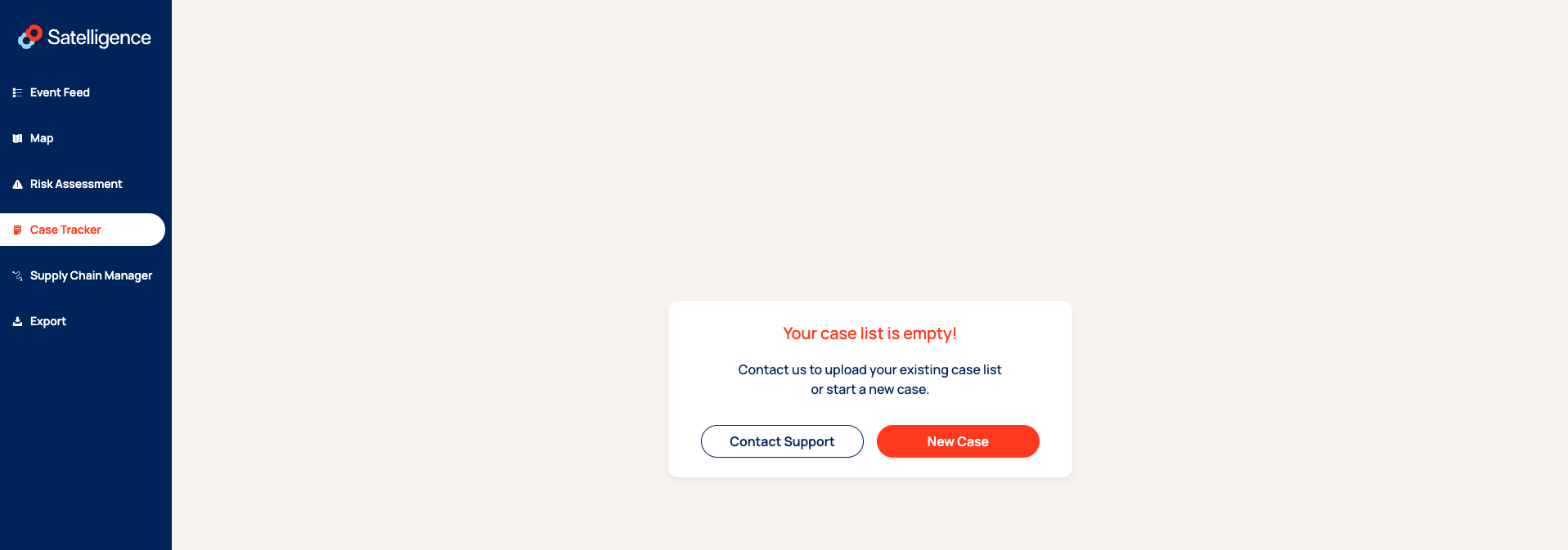
By clicking the "New Case" button, you can create and edit the case. You can add the following:
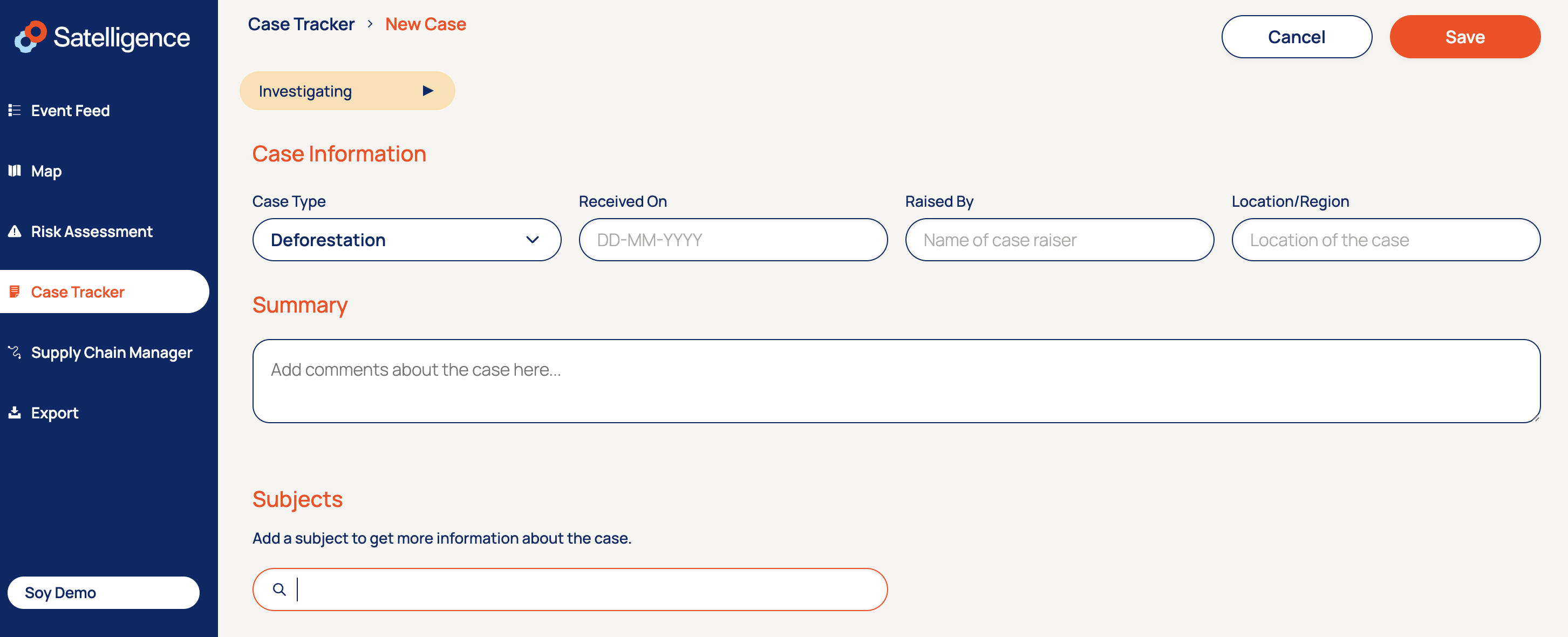
- Case type: You can select from Deforestation, Land Conflict, Human Rights, or Other.
- Received on: You can enter the date (DD/MM/YYYY) when you started investigating the case.
- Raised by: You can specify which person from your organisation created the case.
- Location/Region: A simple tag to help identify the area of your supply chain from which the case was raised.
- Summary: Here, you can add any additional information you would like to address regarding the specific case.
- Subjects: Here, you can link the case to a particular part of your supply chain.
- Cancel: The button on the right side of the screen allows you to cancel the creation of the case.
- Save: The button on the right side of the screen that, if clicked, will save the case under your case tracker overview.
Alternatively, you can create a case under the "Risk Assessment" section, and the information below shows how to;
- Click on your "Risk Assessment" tab in the navigation menu on the right side of the screen and select "Plots".
- Apply any filter in the top to create a subset of your plots that you would like to further investigate within the supply chain. You could think of investigation a specific supplier, all plots with deforestation >0.1ha, any plots within protected areas or a combination of those.
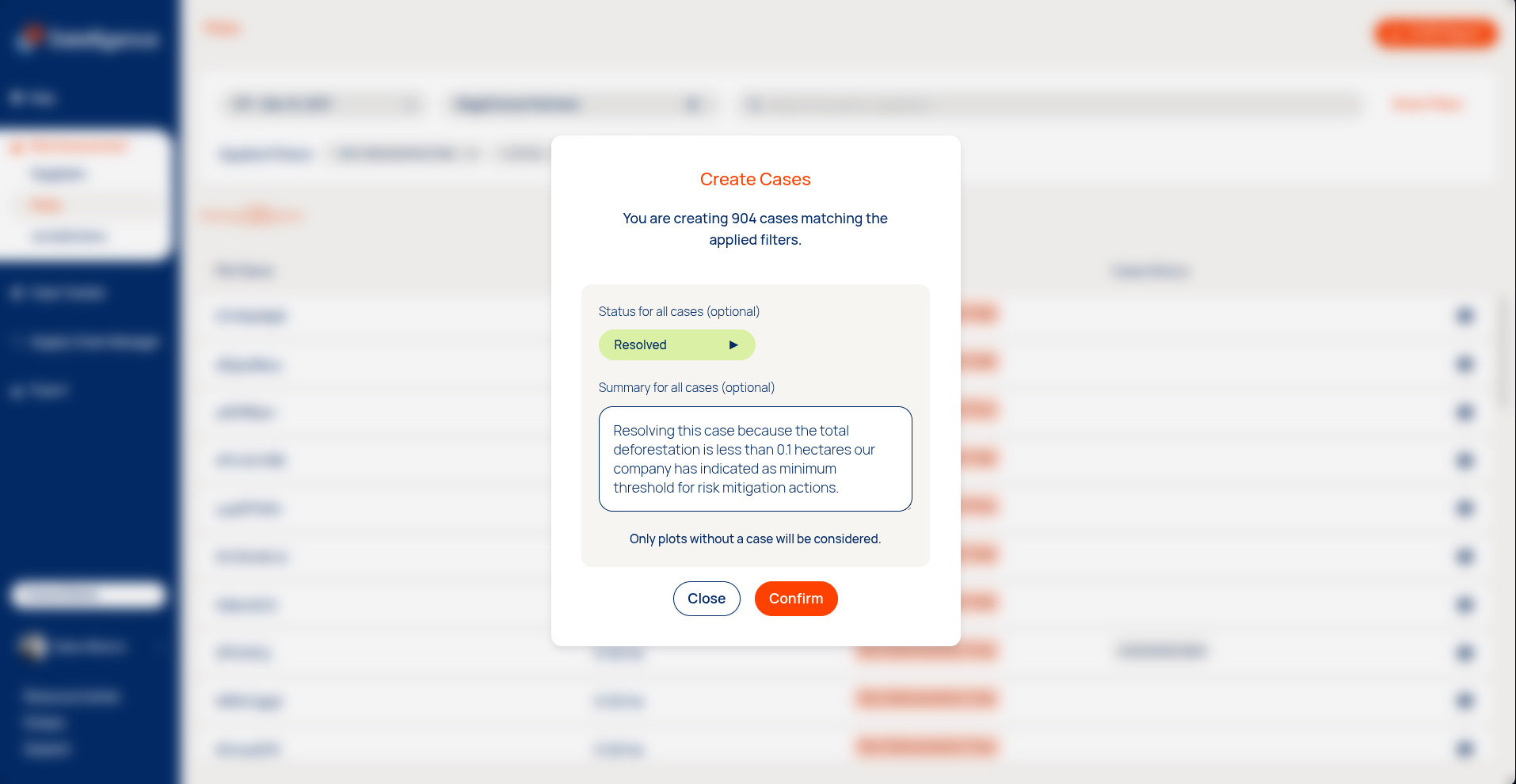
- After making any selection, it will prompt a "Create Cases" button in the bottom. Clicking it will create a case for each of the selected plots. If will prompt a message to tell you how many cases would be created and the ability to immediately assign a status and summary to each of the new cases. Note: any plots where cases were already created before will be skipped
Case list
After you create a case, you will be able to access it from a list overview. This is a list of all cases created by you, sorted by the ‘last updated’ date.
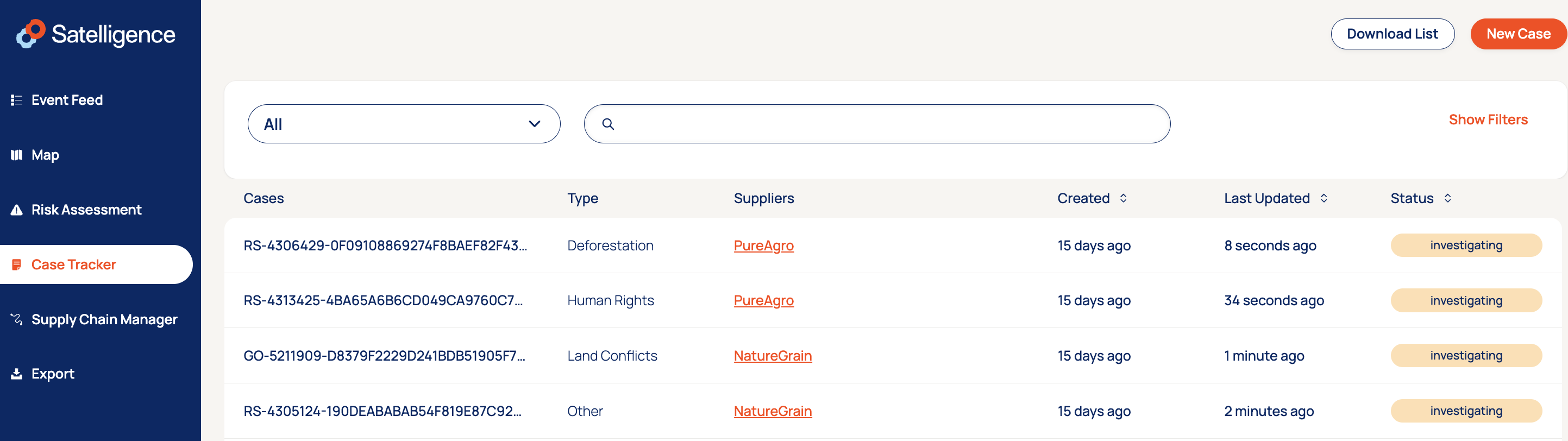
1. Case: Unique ID of the case for internal reference.
2. Subjects: Here is where you can see for which Plot, Concessions, mills or companies/groups your case was created.
3. Case type: A simple tag on which you can differentiate between Deforestation, Land Conflict, Human Rights, or Other.
4. Suppliers: Show which supplier is related to the case that was created.
5. Date created: This is calculated from when you filed and saved the case. It is represented in the amount of days, weeks, months, or years.
6. Last Updated: If you make any changes to the case, such as updating the status, adding comments or if you receiving evidence in the activity log.
7. Risk Mitigation: If the related supplier has submitted evidence to support the case investigation, it will show "Evidence submitted" here.
7. Status: You can use the drop down menu to change the status of a case fromInvestigating to Monitoring, Dismissed or Confirmed.
8. Download list: By clicking on the top-right button "Download list", you have the option to bulk download all the cases created.
9. New Case: By clicking the "New case" button, you will be redirected to a new page where you can input information about what you are creating. More information follows below:
Accessing further information
If you want to add information about a specific case on your list, click on the case to view additional details.
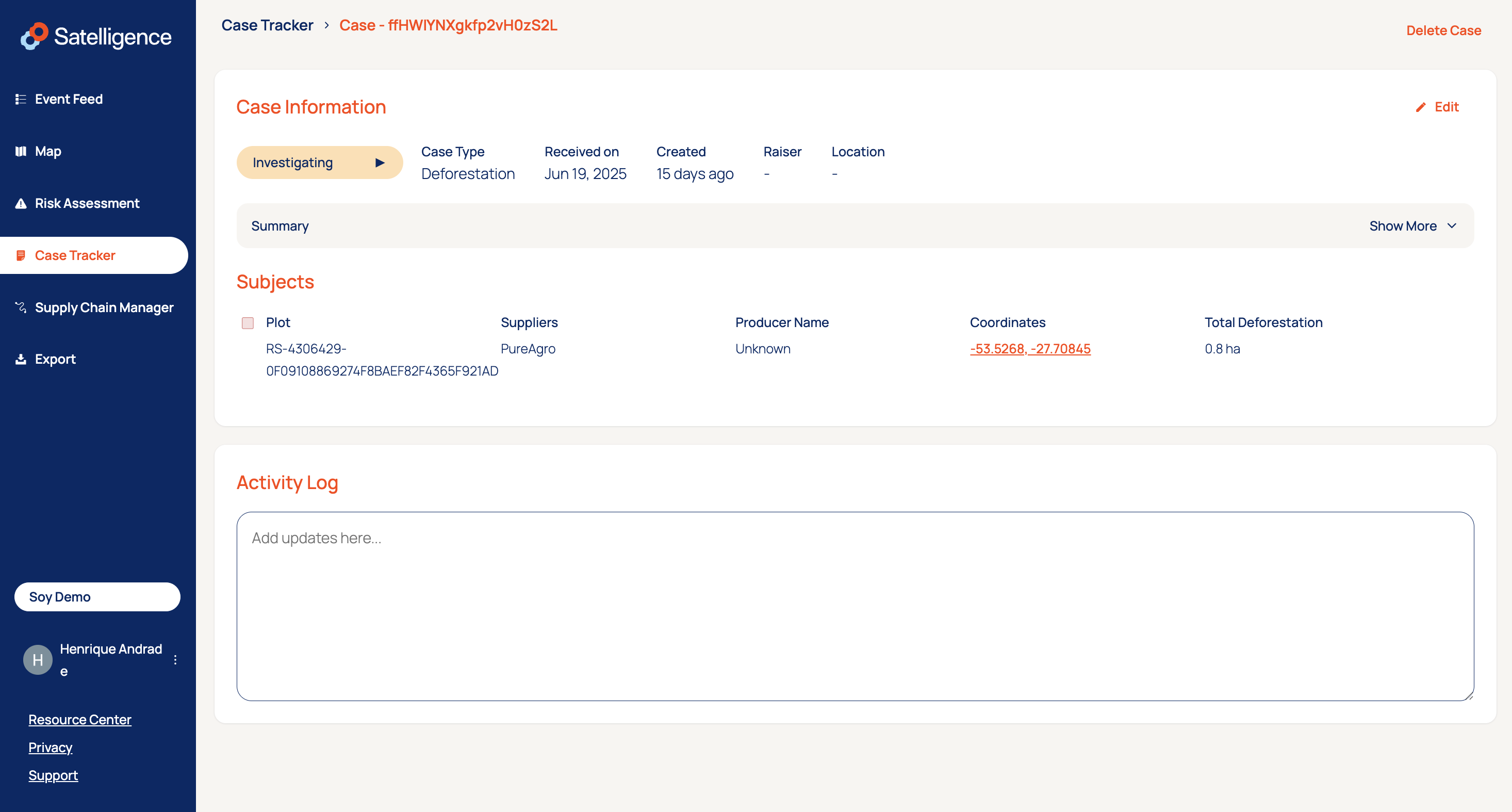
- Status: You can change the status of the case from 'investigating' to 'monitoring', 'dismissed' or 'confirmed'.
- At a glance, you can see the plot related to your case, which supplier the case is associated with, the producer name, the coordinates, and the size of deforestation related to it, depending on the framework selected in the drop-down list on the right. In case a related plot is deleted, it will still retain its basic name, ID, supplier and location for future reference and bookkeeping.
- The activity log is where you can add comments or supporting documents. The log will also keep track of evidence submissions and notes from suppliers or other relevant information. This will keep a history of all changes that are made to the case, including its designated status.
- The "Edit Button" allows you to edit the case and access all functionalities as if you were creating a case.
- The "Delete case button," as its name suggests, allows you to delete the case.
Case Statuses
- Investigating
- Description: The default state of new cases, indicating first steps on the side of the platform users are still being undertaken.
- Closed case: No
- Monitoring
- Description: First investigations have been performed and the supplier has been asked to share evidence.
- Closed case: No
- Dismissed
- Description: The provided evidence has proven that the alleged violations can be disproved and the case can be dismissed. Sourcing can continue as before.
- Closed case: Yes
- Confirmed
- Description: The violations were confirmed directly by the user or supplier, or could not otherwise be disproven, therefore sourcing from this supply chain entity must be halted and the case is confirmed.
- Closed case: Yes
Cases can be changed individually by opening the details page or in bulk by making a selection using filters. This will prompt a floating bar in the bottom that enables you to change the status of all selected cases at once.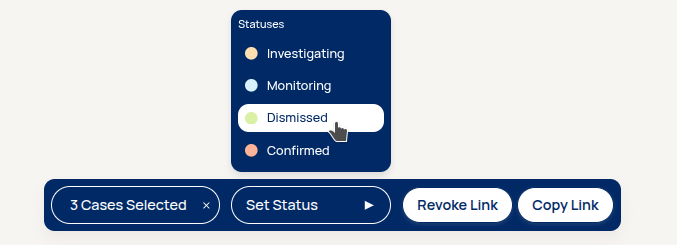
Supplier - case relations
Your organisation is exposed to grievances via sourcing relations. The case tracker automatically links cases to your tier 1 suppliers via the available supply chain information. The following relations are supported and can expose you to cases:
- Plot
- sourcing relation: Plot - Supplier
- Commodity: All
- Concession
- sourcing relation: Concession - Mill - Supplier(s)
- Commodity: Palm oil
- Palm oil mill
- sourcing relation: Mill - Supplier(s)
- Commodity: Palm oil
- Group or company
- sourcing relation: Group/Company - Mill - Supplier(s)
- Commodity: Palm oil
Sharing cases with a supplier
To share cases with a supplier you have to start an engagement. Engagements are links (URLs) you can create, copy and revoke. You can share the links with a supplier who can access the cases without the need for an account on the Satelligence platform.
- The option to start an engagement is displayed when you are looking at the cases for a single supplier. From the Risk Assessment page you can click on the button to view the unresolved cases for a supplier. Or on the case tracker you can use the Supplier Filter to select or click on the supplier link for an individual case in the list.
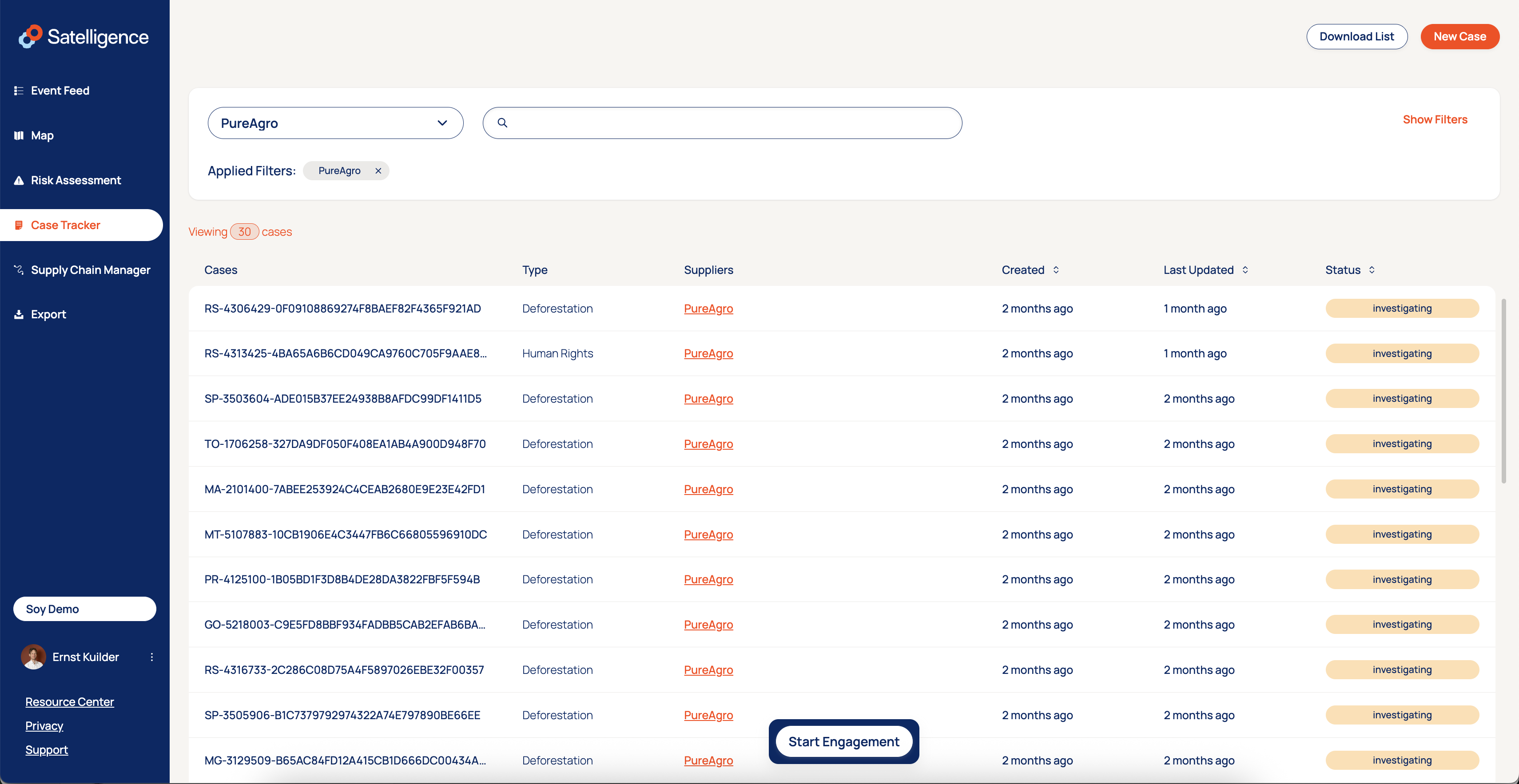
- Click Start Engagement. You have now created a link that can be accessed by anyone who has it. Click "Copy Link". In the list view you will now see the tag "engagement started" as an indicator that a URL was created for this case.
- Share the link with instructions to your supplier.
- The supplier can view the list of cases. You can also view this list as your supplier sees it by accessing the link yourself.
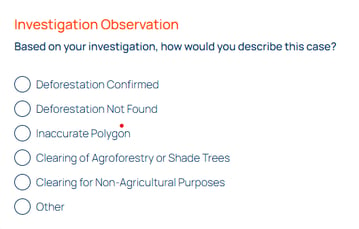
- Your supplier can click on each individual case, read the information available and leave a Note and an Investigation Observation. The notes are a free text field. The supplier can also see the relevant compliance cut off date that has been applied to the case.

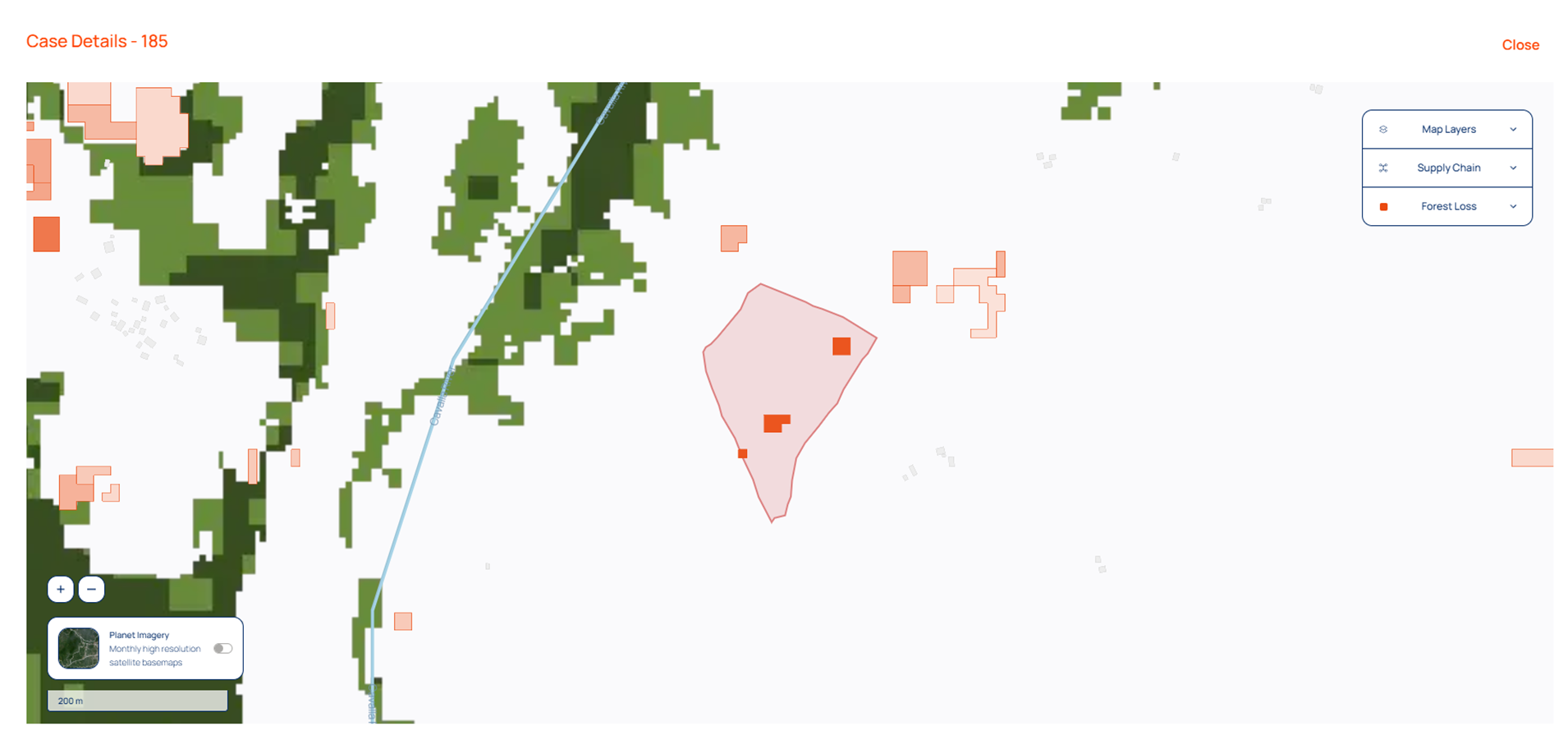
- The supplier is also able to see and interact with the detection information via the 'View Map button on the top right of their screen. This enables them to see the detection on the map, see the non-negligible risk in the area around the plot and access the Map layers and high-resolution Planet imagery to investigate further. Please note, a supplier will have access to this information pertaining only to the case in question and not to other parts of the supply chain.
The Investigation Observation is one of following:
- Deforestation confirmed - in these cases, the supplier has also observed deforestation having taken place.
- Deforestation not found - these are cases where tree cover loss is mistakenly flagged as deforestation. This can for instance happen when there is clearing and replanting of older oil palm or cocoa plantations, or for instance pruning within coffee cultivation areas.
- Polygon inaccurate - in these cases, the the polygon or point that was initially submitted was not correct or precise enough. An area that is not used for cultivation may have been included in a polygon or a point was submitted where a polygon would give a more precise result.
- Clearing for agroforestry or shade trees - these are cases where supplier has provided evidence to prove that the clearing has indeed been made but to manage agroforestry and shade tree plantations (such as pruning, tree density and space management and other practices).
- Clearing for non-agricultural purposes - these are cases where supplier has provided evidence to prove that the clearing has indeed been made but for non-agricultural purposes and hence might be flagged as 'compliant' by the user.
- Other - These include non-deforestation related cases for compliance, e.g. legality related
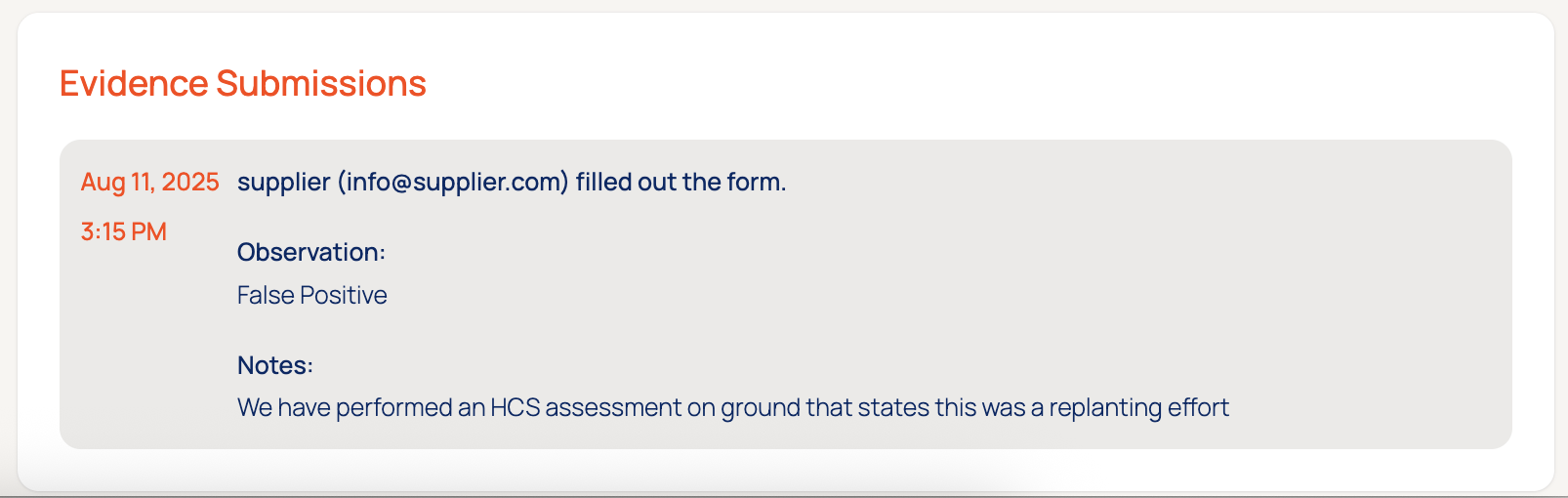
- Once the supplier saves their response the information is included in the Activity Log for the case on the tracker. Click on an individual case and scroll to the bottom. In the list view the tag "Evidence Available" is shown for cases where suppliers have responded.
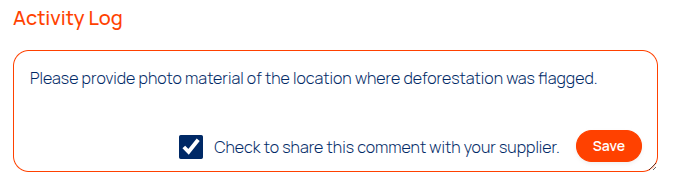
- Users of our app can optionally share comments in the Activity Log with the supplier as well, who will see these remarks on their side. This allows for easier two-way communication between the user and the supplier wherever follow-up is needed. There are also toggles to share/revoke comments at a later stage, either per comment or in bulk!
To revoke access to the case list, repeat step 1 but now click "Revoke Link". If you revoke the link, people with access will not be able to view cases anymore. You can always generate a new link to send via email.
Watch this video to see how you can share a case with a supplier: