
The DD Statement section of the Data Manager allows you to create and add Due Diligence Statements. You can use statements to lock in a snapshot of your supply chain and submit the statements with plots to the EU Information System TRACES.
Without any earlier statements, you are presented with an empty list of statements.
- Start by clicking the Add Statement button in the top right.
- By default statements are sorted chronologically and we guarantee 5 years of storage for compliance with EUDR
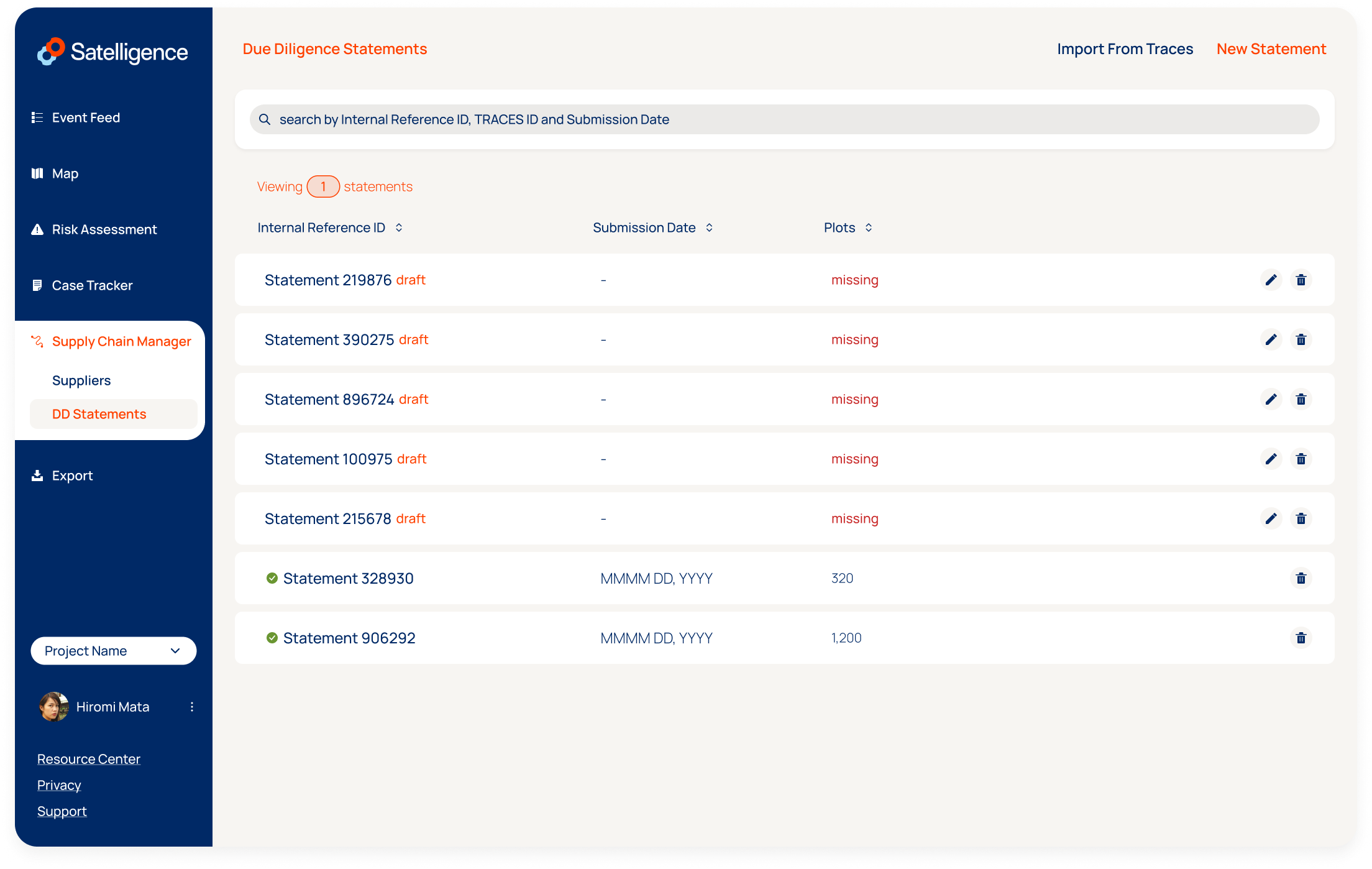
When you add a statement it will be opened.
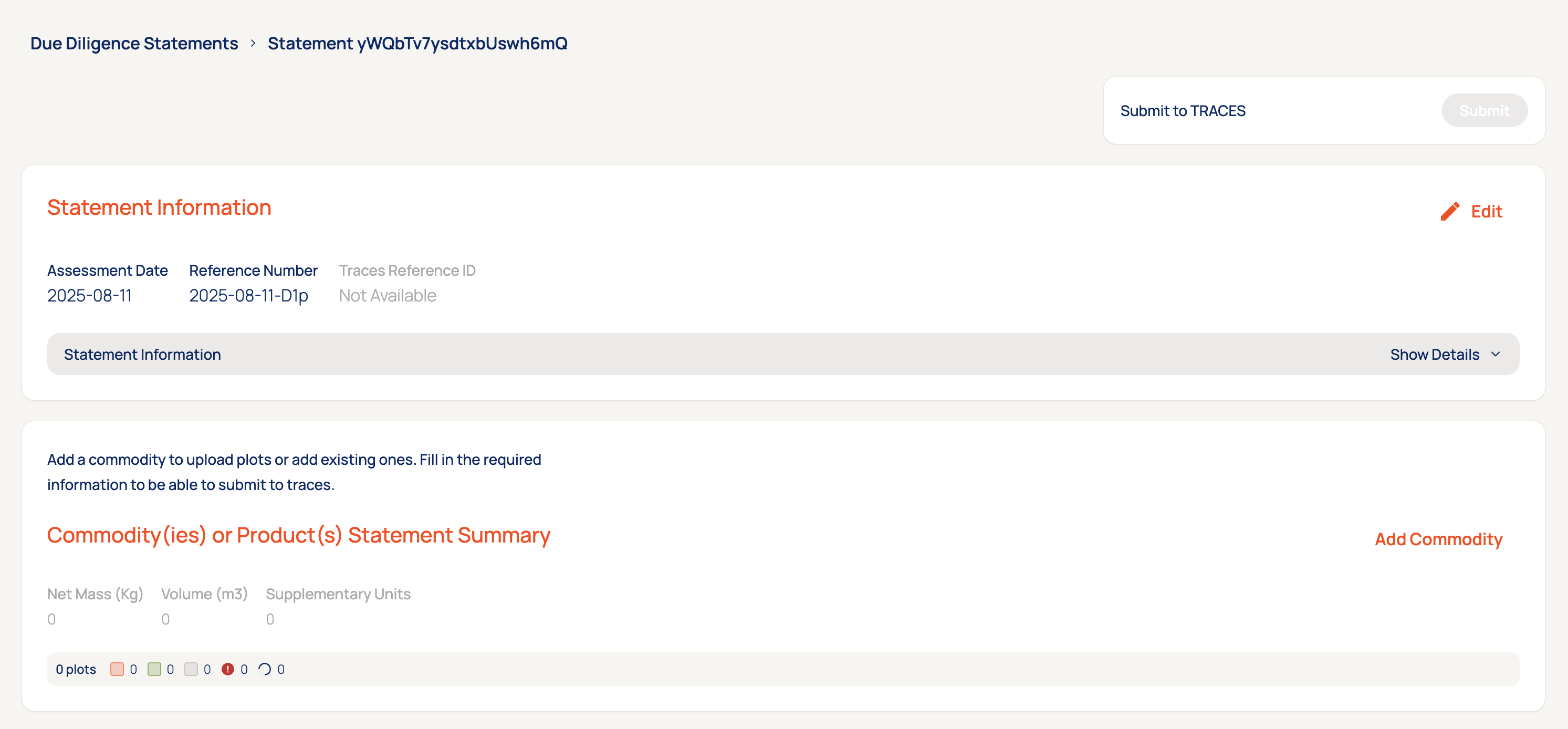
A Statement consists of two parts
- Statement Information
- Commodity Or Product Information
Both parts have required fields and additional requirements for when you want to submit to TRACES. Additional fields can be completed to be included to TRACES but are optional or only required for specific products.
Statement InformationStatement Information contains 8 data points that can be edited by clicking Edit on the top right
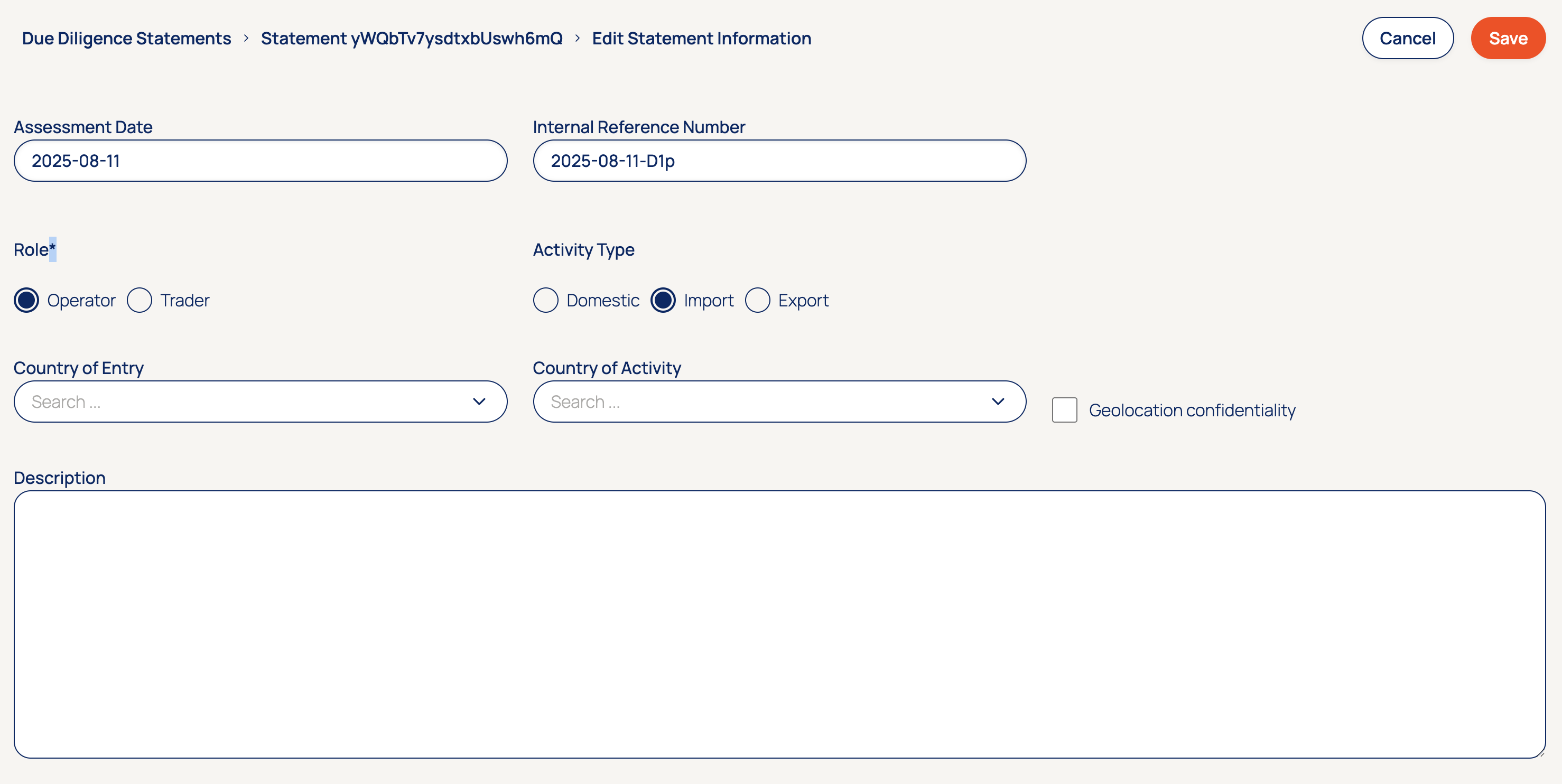
- Assessment Date is required, defaults to today and used as the upper limit of the time range for the assessment. Plots as part of this statement are assessed for risks that occurred from the EUDR cutoff date of 2020-12-31 until the Assessment Date. It is not included in the submission to TRACES.
- The Internal Reference Number is required for Traces, defaults to YYYY-MM-DD-random_number. Use this field for your own reference. It is included in the submission to TRACES.
- Role is required for Traces and included in the TRACES submission. It corresponds to the EUDR definition outlined in Article 2 (15) and (17).
- Activity Type is required for submission.
- Country of Entry is required and included in the TRACES submission
- Country of Activity is required and included in the TRACES submission
- Geolocation Confidentiality is not required but when ticked is included in the TRACES submission to prevent sharing plot data with others who can access the statement on TRACES
- Description is optional but included in the TRACES submission when not empty
After completing the form, click save to go back to the Statement overview.
Commodity Or Product InformationThis is where you attach plots to the statement. At least one Commodity or Product is required for submission to TRACES but it is possible to add more than one. Click on Add Commodity to start.
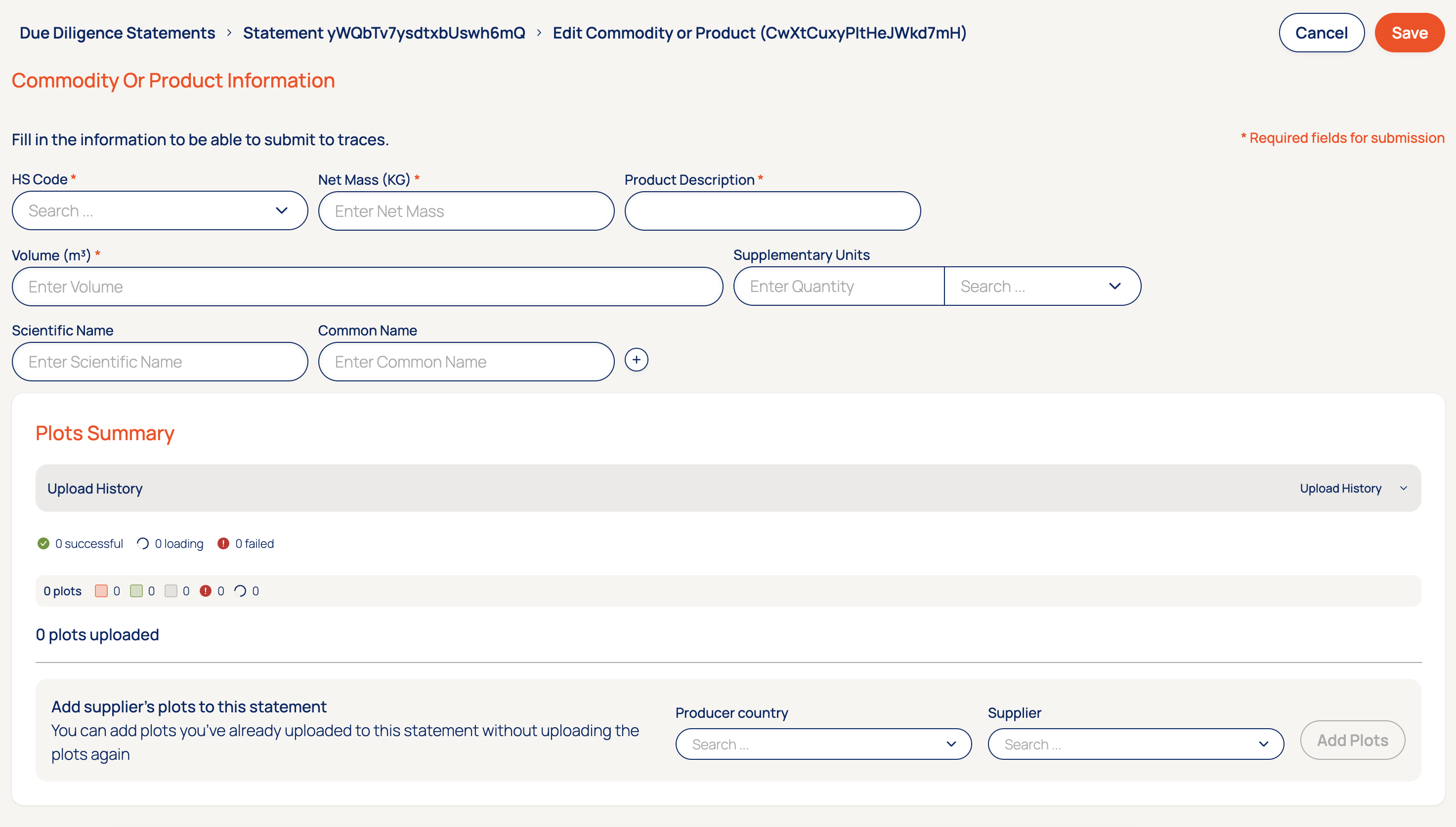
Fields with a red asterisk (*) are required for TRACES, but you can always save this section of the form and come back to it later. Refer to the TRACES User Guide for details about each field.
To store and submit plots for the statement you can add the current plots of a supplier. On the bottom right, select the Supplier from the list and select the Producer Country that matches the plots. If the uploaded plots for the supplier already have an ProducerCountry property as an ISO code, that value will be used. The Producer Country is used as a fallback. Click Add Plots. It is possible to repeat this process and plots of more than one supplier to the same Commodity Or Product.
Adding plots starts a process that copies the plots to the statement and assess risks for the provided Assessment Date. You can Save this Commodity Or product and come back to it later. While the copying is in process the statement cannot be submitted, this takes less than 10 minutes before the assessment starts. It is advised to wait for the assessment to finish to check whether all plots are assessed as green deforestation free, but you can already proceed with submitting the statement.
Submit to TRACESThis step only applies to organizations who have the TRACES submission enabled. Please consult your Account Manager if you believe this should be the case.
To submit to TRACES you go back to the statement overview by clicking Cancel or Save. With one or more Commodity Or Products added the submit button on the top right becomes active. Click Submit. This takes you to a final confirmation screen that asks to acknowledge that you have done your due diligence. Tick the box and click Confirm to Submit. If all goes well you are back at the statement and shown a green box that says: "Statement successfully submitted to TRACES". You have completed your work for EUDR and can go ahead with the activity.
Potential submission errors- Error: Description
- Commodity has ongoing upload: A commodity has recently been added to the DD statement and is still being uploaded. Coming back later after upload is completed will enable submission to TRACES.
- Too small: expected array to have >=1 items → at producers: A commodity was added without any plots. Review the added commodities to correct the missing or empty supplier.