
The Seasons module is where snapshots of your supply chain are stored. Your supply chain data and risk assessment results can change at any time; new deforestation data is added and suppliers change. That makes it hard to prove that on a specific date, a specific plot was deforestation-free.
The Seasons module lets you freeze (part of) your risk assessment at a point in time, so you can go back and show exactly what your supply chain looked like on any given date.
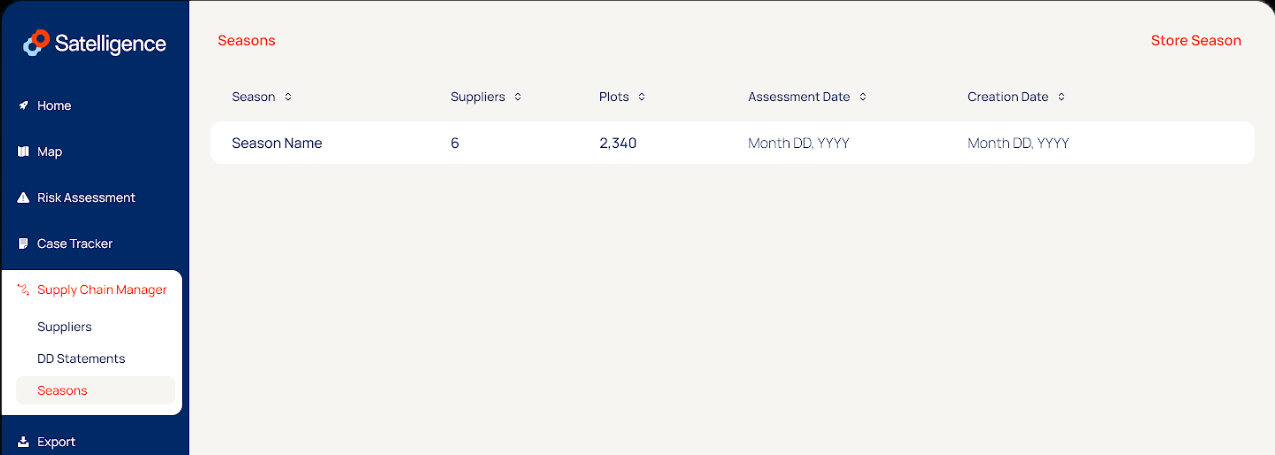
Navigating to the Seasons tab will show you the list of all snapshots you have created already, showing the total suppliers, the number of plots included, the assigned assessment date and when it was created.
Storing a Season
A new Season can be created by clicking "Store Season" in the top right of the list view. Depending on the way you have organized your operations you could choose to create a Season for each separate supplier, a subset of your plots from the Risk Assessment page or of your entire supply chain. 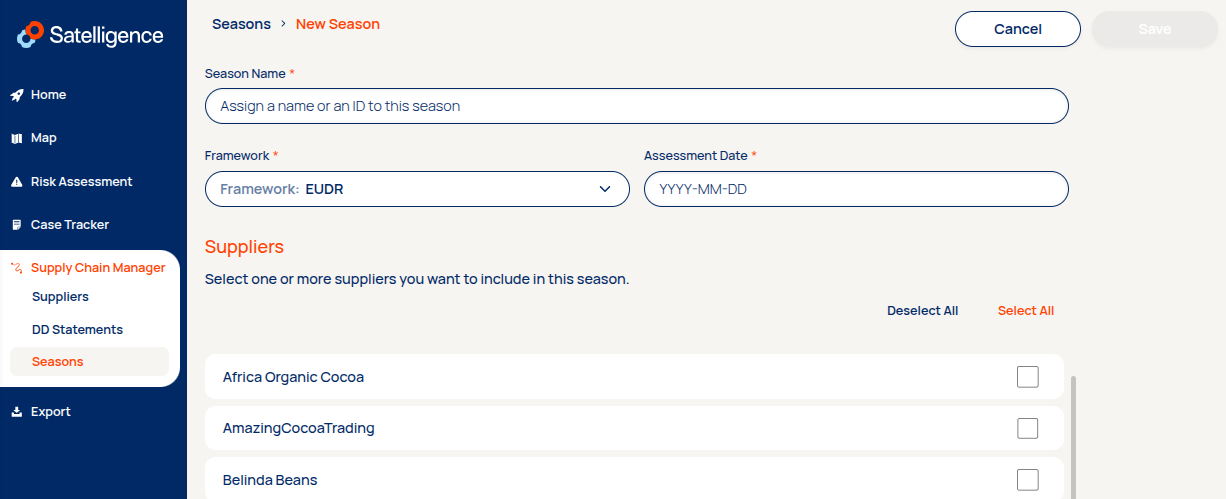 Creating a new Season will ask you to fill in a few details:
- Season name: this is effectively the unique identifier you will assign to this Season. This can be a description of the included suppliers, geography or fiscal year, or a reference to the shipment ID in your internal systems.
- Framework: this determines the cut-off date of the assessment results that will be stored for the Saeson.
- Assessment date: this determines the end date of the analysis, any deforestation that happened after this date will not be included in the risk assessment results of the Season. This might be a harvest date, a shipment date or simply the end of your annual/quarterly reporting cycle.
- Suppliers: you will be able to select any combination of suppliers, of which all plots will be included. For more fine-grained selection of plots for a Season, see the section below 👇
Once all mandatory fields are filled, the "Save" button in the top right will be enabled. Saving the Season will start a process where the selected supply chain entities will be backed up to a vault and reassessed against the given framework and assessment date. Once the data has been successfully copied, this will trigger the creation of exports.
Note: depending on the number of included plots, this process might take up to a few hours. We recommend working with multiple smaller Seasons, instead of a single large one.
Creating a Season from the Risk Assessment
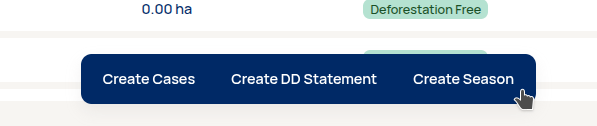
If you wish to make a specific selection of plots to include in a Season, you can navigate to the Risk Assessment > Plots page. Applying any combination of filters will prompt the floating bar in the bottom, which allows you to include all selected plots in a new Season. Selecting this will present a window that asks you to fill in the necessary fields to start the creation of a Season.
What is stored in a Season?
Each Season is effectively a snapshot of your (partial) supply chain, making it an audit-ready piece of evidence of the known risks at a given point in time. When navigating to a specific Season, it will display the overall risk assessment results and a list of the Suppliers present in the Season, along with the framework and the assessment date.
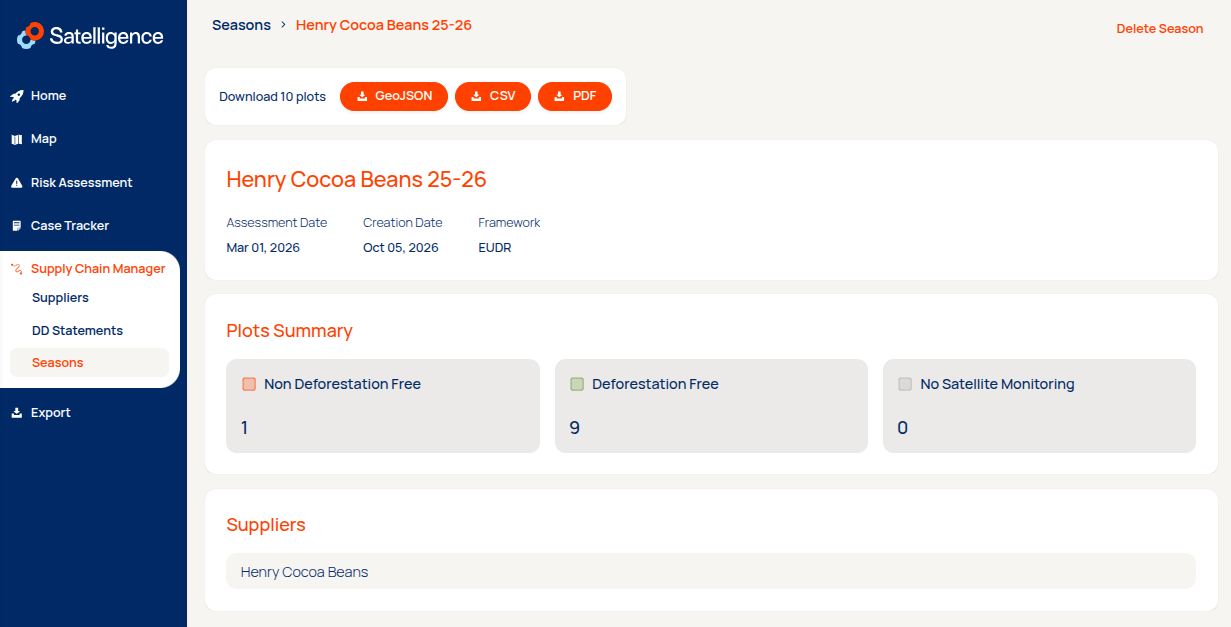
To fulfill its role as an audit-ready archive, all stored data is kept as immutable source in this section of the app and available as pre-made downloads. The available downloads are as follows:
- GeoJSON: Zip file with all the included plot geometries and metadata, currently split into 25mb parts to allow for ease of use in EUDR DDS submissions.
- CSV: A spreadsheet file with all the risk assessment information for the given framework and assessment date.
- PDF: A summary report with the aggregated findings of all included plots of the Season.
Note: while case tracker information is included in the report, it is currently not yet available for download within Seasons. While this functionality will be added in a later update towards end of 2026, this might mean a Season needs to be recreated before this download is available.
Data retention
Seasons are made to be immutable and ready for use whenever the need arises in the future, whether it be annual reporting, external audits or simple bookkeeping. As such, Satelligence does not have any auto-deletion protocols in place as long as the contract is active and will keep the files stored as-is until directed otherwise.
Seasons can be deleted by the users themselves, which will lead to permanent deletion. This data cannot be recovered and a new Season must be created to replace the deleted information. If the contract between the user and Satelligence expires, the data is only kept for 3 months until permanent deletion. In this case the user is responsible for backup up any files before user access is removed.